You open the mail app on your phone and see three messages. You switch to your computer’s browser and count seven. The difference isn’t always caused by a bug: sometimes the password saved on your phone is out of date, and sometimes notifications are turned off, making it seem as though nothing is coming in. To check your email on your phone and keep it in sync with your computer, you need to distinguish between these three situations, because each one calls for a different solution.
Delivery delay, notifications turned off, or account error: identify the real problem
When an email appears on your computer but not on your phone, it’s easy to blame synchronization. In most cases, the account is working properly, but one of these three mechanisms is causing the issue.
The first is a delivery delay caused by Fetch mode. On iPhone, message retrieval can be set to Push (instant delivery) or Fetch (checking for new messages every 15 or 30 minutes). If automatic mode is enabled, the device may delay background checks to save battery. It can then seem as though an email hasn’t arrived when it’s simply waiting for the next check.
The second pitfall is disabled notifications. The email is in the app, but no alert appears. On both Android and iOS, app notification settings can be turned off independently of the email account itself.
The third case is the only genuine synchronization problem: an authentication error is blocking the connection to the server. Changing your password on your computer without updating it on your phone is enough to stop everything. One user on the Google forum reported forgetting to update their mobile login details after resetting their password.
To find out where to look, open the mail app on your phone and refresh it manually. If the messages appear, the problem is with notifications or the retrieval frequency. If an error message appears, it’s an authentication issue.
This detailed guide also explains how to check your email on your phone, reviewing each type of setup for different email providers.
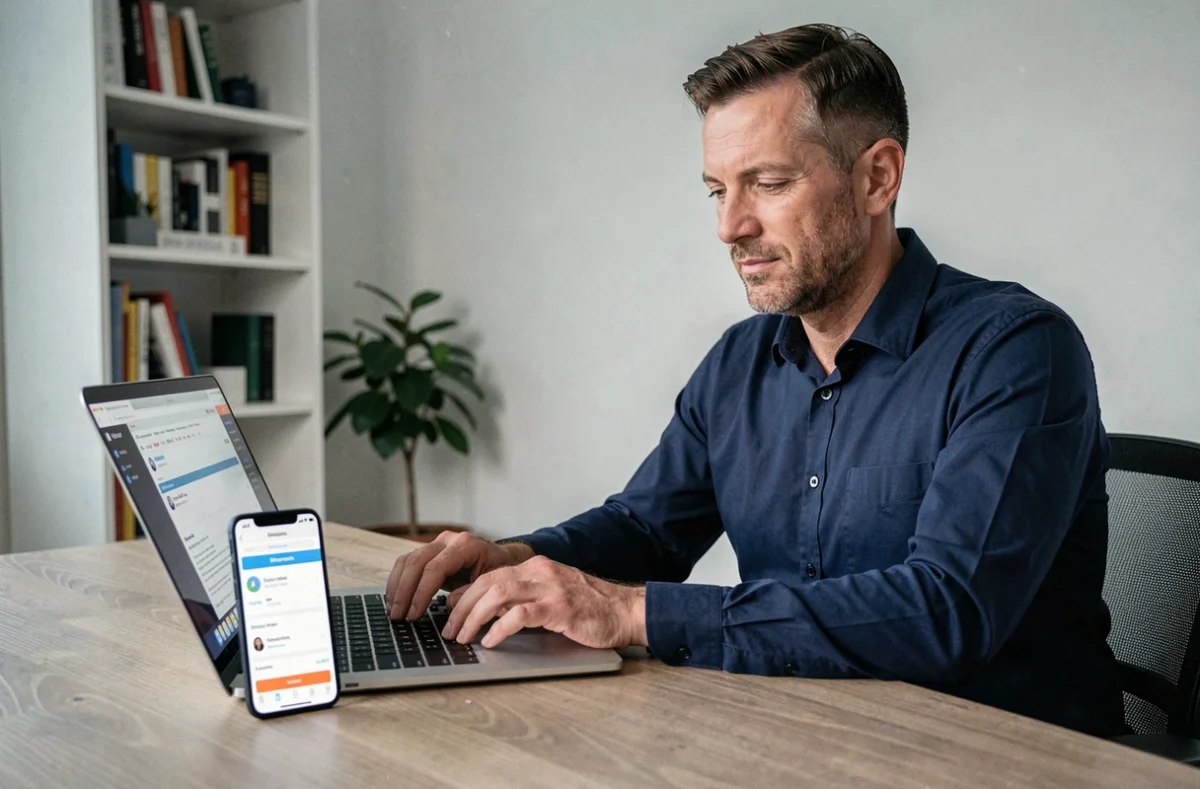
Set up email synchronization between Android or iPhone and a Windows computer
Once you’ve identified the problem, it’s time to configure your devices. The method depends on your mobile operating system and email service.
Gmail on Android and computer
Gmail comes preinstalled on Android phones and is synchronized with your Google account by default. To check that synchronization is enabled, go to Settings, then Accounts, and select the relevant Google account. Make sure Gmail auto-sync is turned on.
On your computer, access Gmail through a browser. Both interfaces use the same IMAP server, so any message you read, delete, or archive on one device is reflected on the other. If the delay persists, check your Android settings to make sure background data synchronization hasn’t been restricted by a battery-saving mode.
Email account on iPhone with a Windows computer
On iPhone, add an account by going to Settings, then Mail, then Accounts. For a Gmail account, Apple uses the IMAP protocol, which ensures two-way synchronization. To access an iCloud account from a third-party app on Windows, Apple requires an app-specific password that’s different from your usual Apple account password. Without this dedicated password, the connection fails without displaying a clear error message.
To receive emails in real time on iPhone, check the Push/Fetch setting by going to Settings, then Mail, then Accounts, then Fetch New Data. Push delivers emails as soon as they reach the server. Fetch retrieves them only at set intervals.
Microsoft Phone Link for centralized notifications
Windows offers the Phone Link app (formerly Your Phone), which displays notifications from your Android phone directly on your desktop. You can see email alerts, text messages, and calls without picking up your phone. The two devices are linked using the same Microsoft account. This solution doesn’t replace IMAP synchronization for your email account, but it helps you avoid missing a notification when your phone is on silent in your bag.
Fix email synchronization after changing your password
The most common scenario on Google support forums is straightforward: you change your password on your computer, emails continue to arrive in your browser, but your phone stops receiving them. The mobile app is still using the old password stored in the system’s credential manager.
On Android, follow these steps to fix the issue:
- Open Settings, then Accounts, and select the relevant account
- Remove the account from your phone, then add it again using the new password
- Check that automatic synchronization is enabled again after re-adding the account
On iPhone, the process is similar: go to Settings, Mail, Accounts, then remove and re-add the account. For business Gmail accounts (Google Workspace), older sign-in methods using a simple password may no longer work. Google now requires OAuth authentication for third-party apps, which means your account password alone is no longer enough if the mail app doesn’t use this protocol.
Check that synchronization is actually working across all your devices
Once everything is set up, run a practical test rather than relying on appearances. The most reliable method is to:
- Send a test email from an external address to the configured account
- Check that it appears on your phone and computer within a few minutes
- Archive the email on your phone, then check that it also disappears from your computer’s inbox
- If the archive action isn’t reflected, the account is probably using POP (which downloads emails without synchronizing actions) rather than IMAP
The IMAP protocol synchronizes actions across devices, while POP only downloads messages. IMAP is the default setting for most current services (Gmail, Outlook, Yahoo). Some older accounts or manual configurations may still use POP, which explains why emails appear on all your devices but deletions and read status don’t sync.
One final thing to check is your account’s storage capacity. When your mailbox is full, new messages stop being delivered to both your phone and computer. Emptying the trash and spam folders often frees up enough space to restore email delivery without changing your synchronization settings.